How To Update the My PetSafe® App
Keep the My PetSafe® App up to date to get the latest features. The easiest way is to enable automatic app updates on your phone. However, you can also update the app manually. Follow the steps below for your operating system.
IOS
Manually Update
Open the App Store on your phone.
Use the search bar to find the My PetSafe® App.
- If the app needs an update, it will prompt you to update. Otherwise, it will prompt you to open the app.
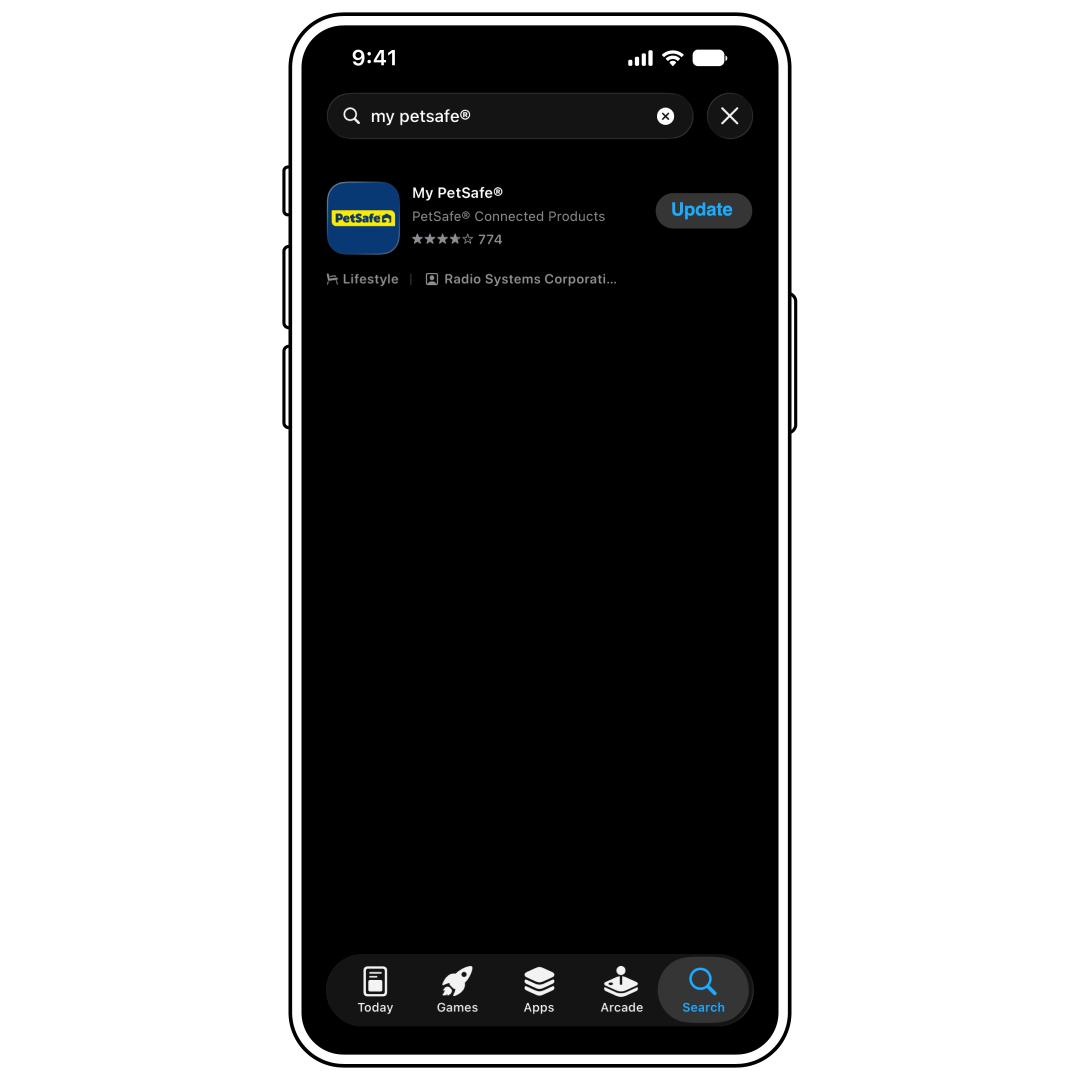
Press Update.
Enable Automatic Updates
Open the Settings app on your iPhone.
Scroll down and tap Apps.
Tap App Store.
Under the Automatic Downloads section, toggle App Updates to green.
- Please note it may delay automatic updates after you enable them. If you need the app immediately, update it manually using the steps in the Manually Update section above.
Android OS
Manually Update
Open the Google Play Store.
Use the search bar to find the My PetSafe® App.
- If the app needs an update, it will prompt you to update. Otherwise, it will prompt you to open the app.
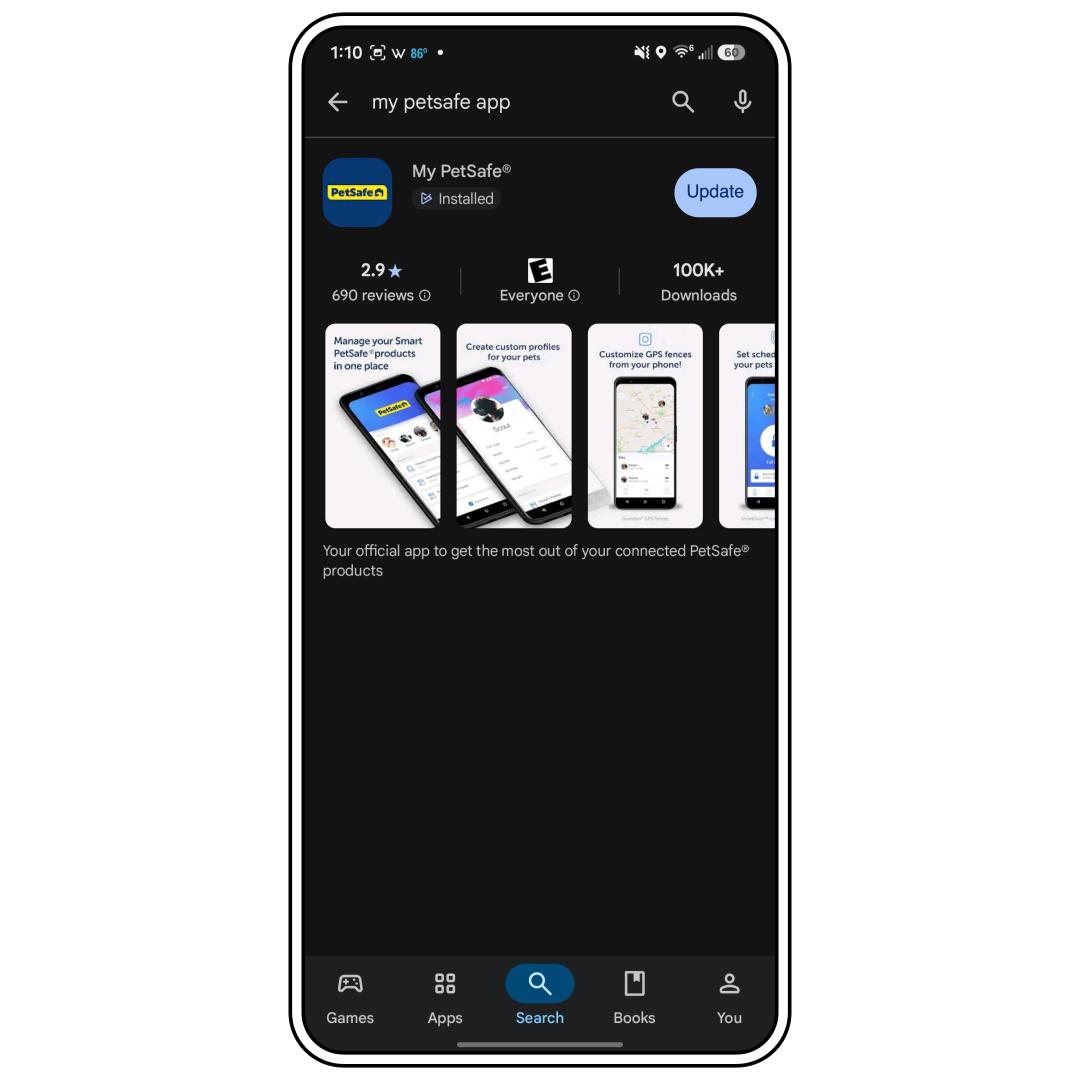
Press Update.
Enable Automatic Updates
Open the Google Play Store on your phone.
Tap your Profile picture in the top-right corner.
Tap Settings.
Tap Network preferences to expand the menu.
Tap Auto-update apps.
Choose your preferred update network option:
- Over Wi-Fi only (saves mobile data).
- Over any network or Wi-Fi or mobile data.
- Update with limited amount of mobile data