How To Update the Wi-Fi and Wi-Fi Location on My PetSafe® GPS Dog Tracker
Important Information
- Updating the Wi-Fi credentials may be needed if you have changed Wi-Fi providers or updated your Wi-Fi password.
- If you have more than one Tracker, you must update the Wi‑Fi on each device.
Reset the Wi-Fi

Open the My PetSafe® app and choose GPS Tracker from the product list if prompted.
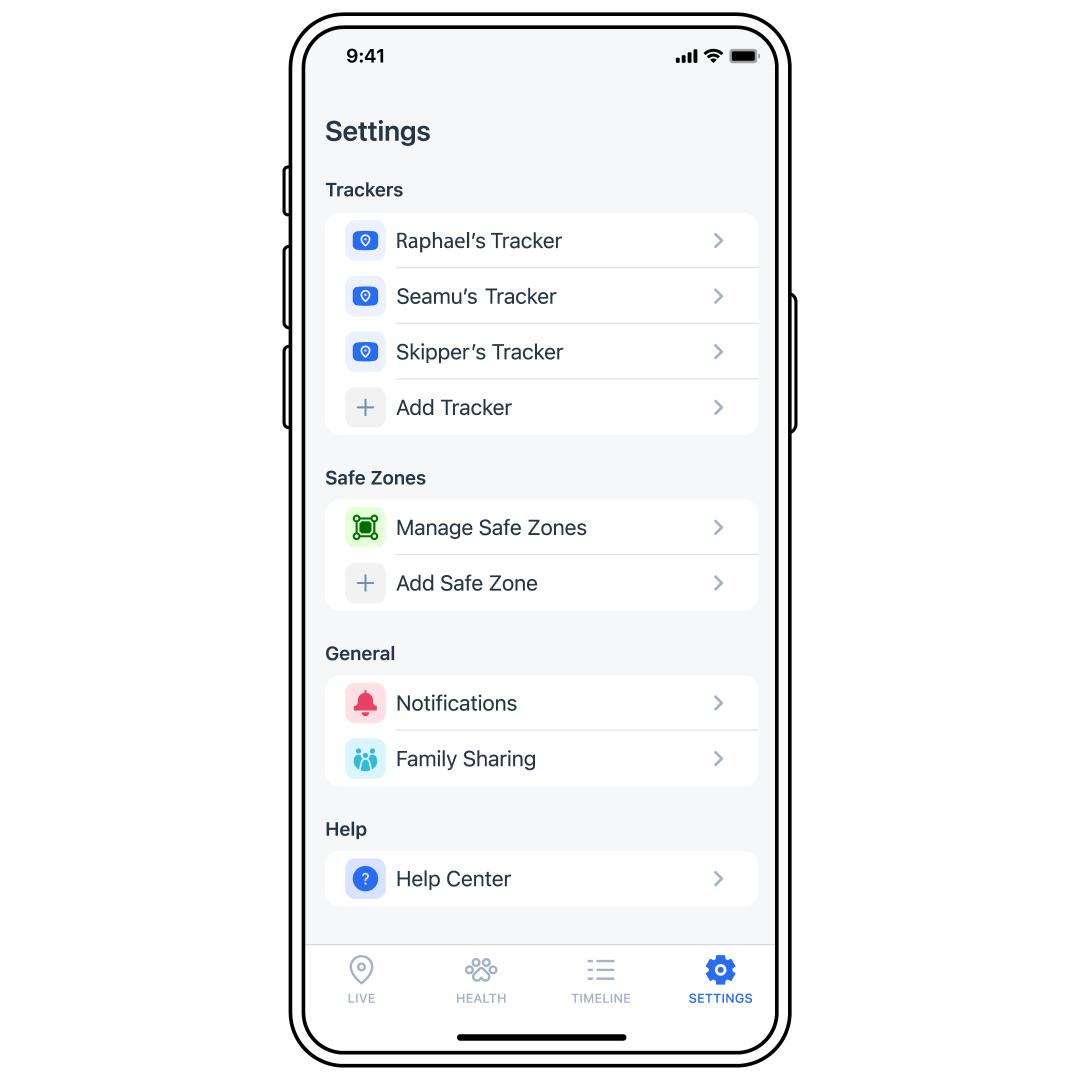
Tap SETTINGS in the bottom-right corner of the screen.
Select the Tracker to which the Charging Base belongs.
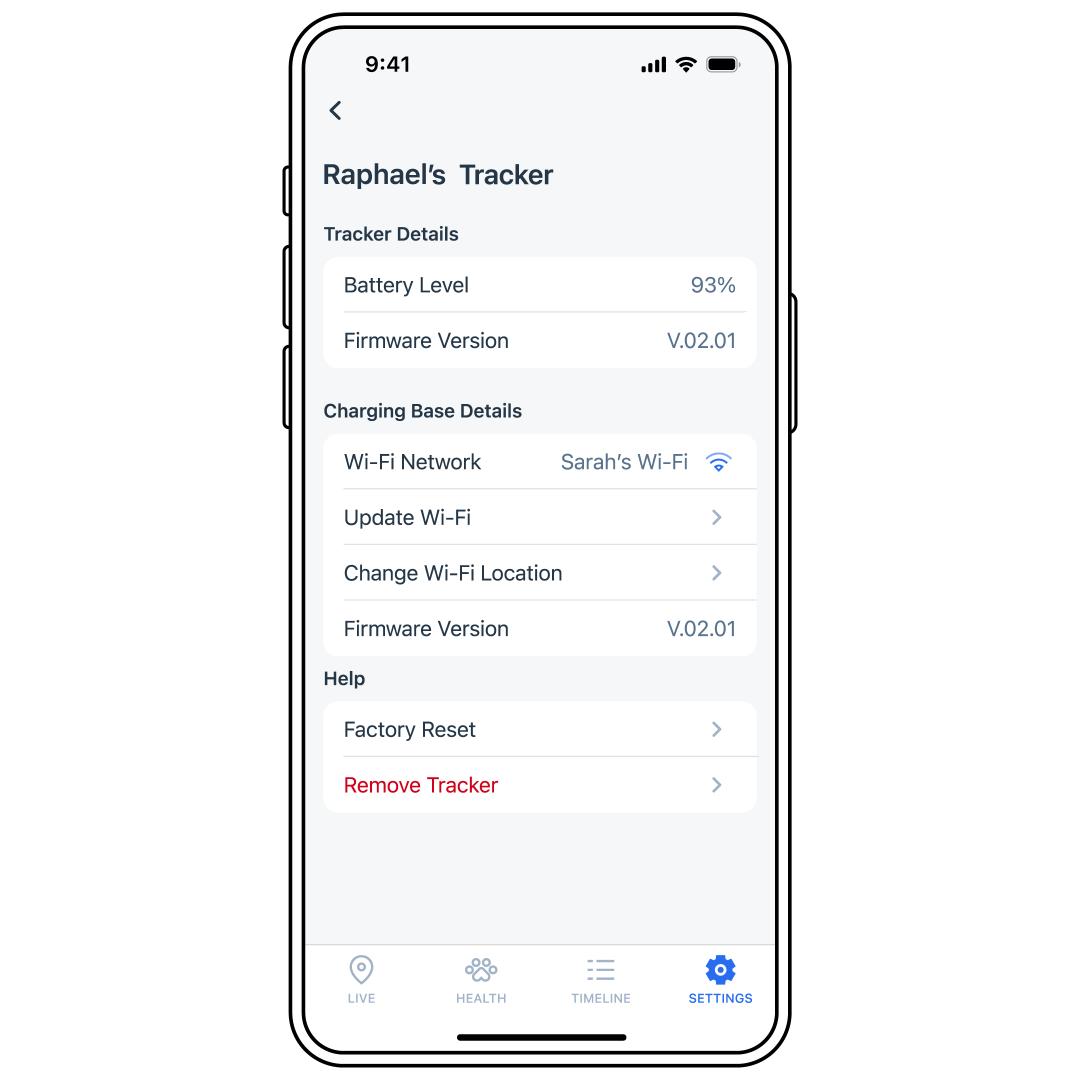
Tap Update Wi-Fi.
Follow the in-app instructions to reset the Wi-Fi. It will prompt you to place the Tracker on the Charging Base so that the devices can sync. This needs to be done before the Tracker is used or the app will not locate the Tracker.
- If there are issues, visit Tracker or Charging Base Won’t Connect to the Internet or Wi-Fi - PetSafe® GPS Dog Tracker.
Update Wi-Fi Location
Open the My PetSafe® app and choose GPS Tracker from the product list if prompted.
Tap SETTINGS in the bottom-right corner of the screen.
Select the Tracker to which the Charging Base belongs.
Tap Change Wi-Fi Location.
- The map should update to your current location. If you are not where your Wi-Fi is, enter the address.
Drag the Map to place your Wi-Fi. Keep in mind when your pet is within Bluetooth range of the Charging Base and enters Base Sync, this will be the location your pet shows on the map.
Tap Save.